Running an Example Calculation
Rules can be tested using the Sample calculation button on the Line Pack page. This option will execute an Example Calculation using all the current rules and inputs configured for the pack segment. The test is run locally and will not affect the system.
Note: The Rules, Points, and Results listed in this dialog box differ depending on the contents of the pipeline; the examples on this page are for a liquids line pack system.
|
Click the thumbnail to see |

See the following subsections below for more information:
Example Calculation
- The Rules box shows how the rules are evaluated and which inputs were resolved from each rule. It also shows if the unreliable or error bit would have been set for the trended input.
- The Points that would have been set box shows exactly which points would have been set and their value and bits.
- The Details box will display all status, warning, and error messages that would have been logged for the calculation.
- The Results box displays the calculation results for Line Pack and Line Pack at MAOP. The results and units differ depending on the pipeline content:
| Natural Gas | Supercritical CO2 | Liquids | ||||
|---|---|---|---|---|---|---|
| Results | Units | Results | Units | Results | Units | |
|
Primary Pack Calculation |
Volume for the segment |
MCF |
Mass for the segment |
lb |
Volume for the segment |
MCF |
|
Secondary Pack Calculation |
Volume converted to energy content for the segment |
BTU |
Measured or calculated density for the segment |
lb/ft3 |
Mass for the segment |
lb |
- The Test calculation button displays another dialog box that is similar to the Sample Calculation, but instead allows the inputs to be modified.
Test Calculation
The Test Calculation is similar to the Sample Calculation feature except that it allows any input to be modified. All changes made on this screen have no external effect on the system; it is a simulated calculation.
Note: The Inputs and Results listed in this dialog box differ depending on the contents of the pipeline; the examples on this page are for a natural gas Line Pack system.
|
Click the thumbnail to see |
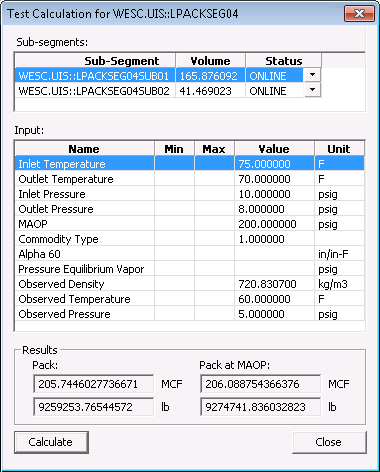
- The Sub-segments grid displays all the sub-segments along with their volume and current status. The status may be changed, but the volume is fixed.
- The Input grid displays all the inputs and allows the Value column to be edited. Any inputs outside the Min/Max range will cause a warning to be displayed, but will not fail the calculation.
- The Results area displays the results of the calculation. When this dialog box is first loaded, the default values are filled in by evaluating the current state of the system.
Displaying the Test Calculation Dialog Box via Script
The Test Calculation feature can also be viewed via script. See the example shown below.
Syntax
LPackEditor.SampleCalculation(DeviceId, PackSegmentTag)
| Parameter | Description |
|---|---|
|
DeviceId |
The device ID of the Line Pack device in the DDS. |
|
PackSegmentTag |
A facility tag for the pack segment to calculate. |
The following script example displays the Test Calculation dialog box:
|
Set lpackEditor = CreateObject("CxDdsEditors.CxDdsLPackEditor.1") lpackEditor.Connect "ACME4.DDS" lpackEditor.SampleCalculation "LPACK1", "ACME4.UIS::SEGMENT_1" |


